sana44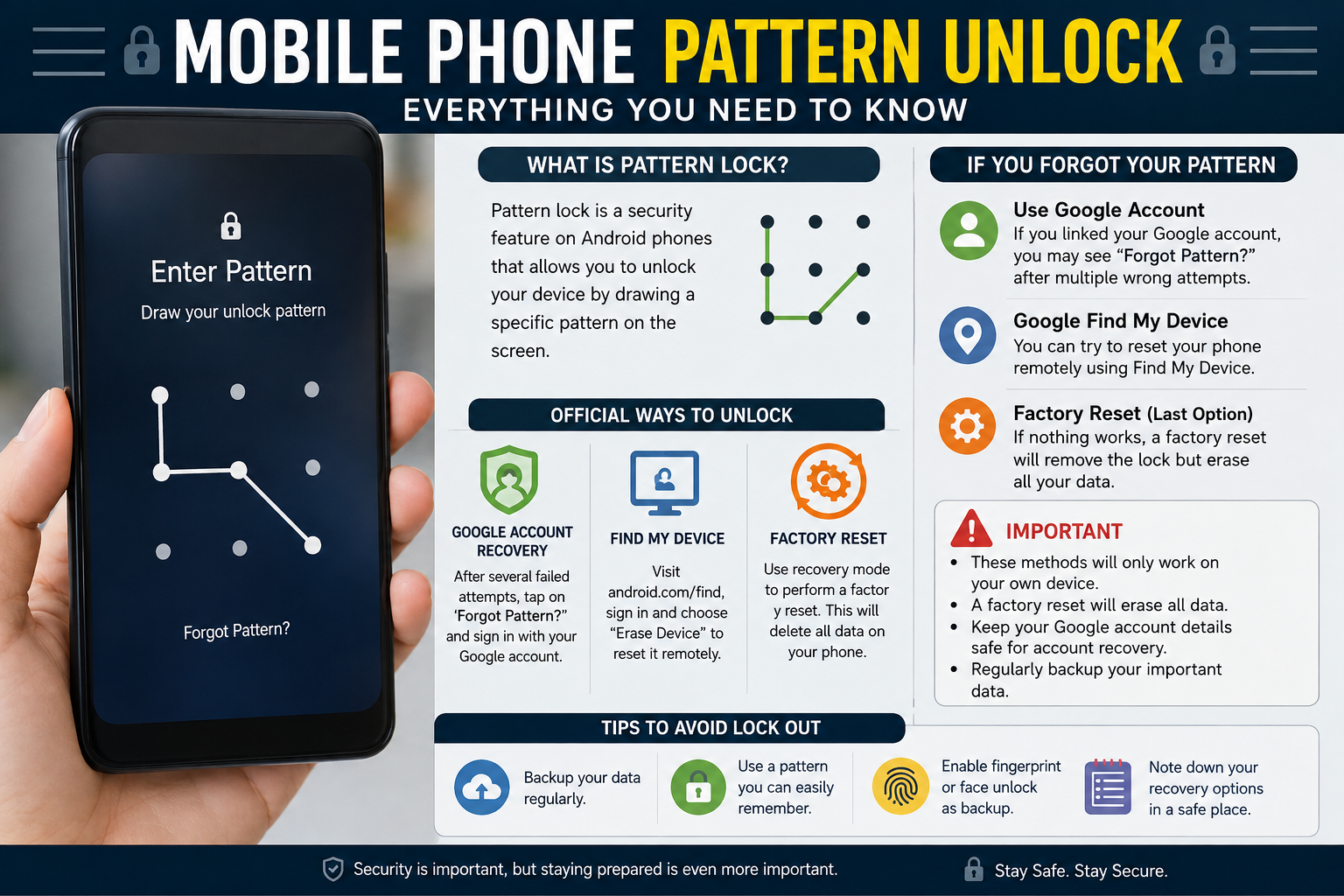
Introduction
A forgotten screen pattern can be frustrating, especially when your phone contains important photos, contacts, messages, documents, and other personal information. Fortunately, there are legitimate ways to regain access to many Android phones, depending on the device manufacturer, Android version, account configuration, and available recovery options.
In this guide, we’ll explain mobile phone pattern unlock options, what you should try before resetting your device, how official recovery methods work, and what to avoid when dealing with a locked phone.
Important: Only use these methods on a phone you own or are authorized to access. A screen lock is designed to protect personal data, so there is no legitimate universal method for bypassing someone else’s security.
What Is a Mobile Phone Pattern Lock?
A pattern lock is a security feature found on many Android smartphones. Instead of entering a PIN or password, the user connects points on a grid in a specific sequence.
For example, a pattern might connect several points from the upper-left area of the grid toward the center and then to the lower-right area.
The exact pattern is known only to the device owner. Depending on the phone, repeated incorrect attempts may trigger temporary delays or other security protections.
Why Do People Need a Pattern Unlock?
Common situations include:
- Forgetting a previously configured pattern
- Entering the wrong pattern repeatedly
- Receiving a second-hand phone that has not been properly reset by the previous owner
- Forgetting a pattern after changing it
- Having difficulty remembering an old Android screen lock
- Needing to recover access after a long period without using the device
The correct solution depends heavily on whether you can still authenticate through an account or another supported recovery method.
What to Do If You Forgot Your Phone Pattern
Before attempting anything that could erase your data, take a few minutes to check whether you have an official recovery option.
1. Try to Remember the Original Pattern
If you recently changed your pattern, think about the previous pattern and the new one separately. Avoid making dozens of random attempts because some phones progressively increase the waiting period after failed attempts.
Also check whether you may have accidentally created a pattern similar to one you regularly use.
2. Check Whether Your Phone Offers an Official Recovery Option
Some older Android versions and certain manufacturer-specific systems provided options such as Forgot pattern? after multiple failed attempts.
If your device displays such an option, follow the instructions shown on the screen. You may be asked to authenticate using an account previously associated with the phone.
Modern Android versions generally use stronger security mechanisms, so this option is not available on every device.
3. Check Your Manufacturer’s Recovery Services
Some phone manufacturers provide account-based services that can help locate, secure, or manage a device.
Depending on the manufacturer and device model, these services may offer options such as:
- Locating the phone
- Locking the phone
- Erasing the device
- Viewing device information
- Managing certain security features
The exact capabilities can change over time, so use the manufacturer’s official support documentation rather than relying on third-party “unlock” websites.
Can Google Find My Device Unlock a Forgotten Pattern?
Google’s device-management service is primarily designed to help users locate, secure, or erase Android devices.
It should not be treated as a universal pattern-lock bypass.
If you can no longer authenticate to your phone, an available official option may be to erase the device and then set it up again. However, erasing the phone deletes locally stored data, so this should generally be considered a last resort.
After a reset, Android’s security protections may also require the Google account previously associated with the device. This is commonly known as Factory Reset Protection (FRP).
Factory Reset: The Last-Resort Option
If you cannot recover your pattern through an official account or manufacturer-supported method, a factory reset may be necessary.
A factory reset restores the phone to its original software state and removes user data stored on the device.
What a Factory Reset Can Delete
Depending on the device and backup configuration, a reset can remove:
- Photos stored only on the phone
- Downloaded files
- Locally stored messages
- Applications and their local data
- Device settings
- Saved accounts on the device
- Other user-generated data
Data already synchronized with cloud services may be recoverable after you sign back into the appropriate account.
Before Performing a Factory Reset
If possible, verify:
- Your Google account email address.
- Your Google account password.
- Whether your photos are backed up to Google Photos or another service.
- Whether contacts are synchronized with your account.
- Whether important files are stored in cloud storage.
- Whether you have access to your phone manufacturer’s account.
- Whether you have the device’s purchase information or proof of ownership.
This preparation can make the recovery process much easier.
How to Factory Reset an Android Phone
The exact procedure varies by manufacturer and model. Generally, recovery-mode resets involve turning the phone off, entering a specific hardware-button combination, and selecting the appropriate reset option.
However, do not assume that one button combination works for every Android phone.
Samsung, Google Pixel, Xiaomi, Motorola, OnePlus, OPPO, vivo, and other manufacturers can use different procedures.
For the safest instructions, search the manufacturer’s official support website for:
“[your exact phone model] factory reset recovery mode”
Follow the manufacturer’s instructions exactly.
What Is FRP and Why Does It Matter?
Factory Reset Protection (FRP) is an Android security feature intended to help protect a device if it is lost or stolen.
After certain factory-reset scenarios, the phone may ask for the Google account credentials previously associated with the device.
This means that simply resetting a phone does not necessarily make it ready for a new user.
Buying a Used Android Phone
If you are purchasing a second-hand phone, ask the previous owner to:
- Unlock the phone.
- Remove their Google account.
- Remove any manufacturer account where applicable.
- Perform a proper factory reset.
- Allow you to complete the initial setup.
If the device requests the previous owner’s account after the reset, the previous owner may need to complete the required authentication.
Avoid websites or services claiming they can provide a guaranteed FRP bypass for any device.
What About Third-Party Android Unlocking Software?
You may find computer programs and websites advertising phrases such as:
- “One-click Android unlock”
- “No data loss unlock”
- “Remove any pattern instantly”
- “Universal Android unlock”
- “FRP bypass without verification”
Be cautious.
Some tools may be legitimate recovery utilities, but others can be misleading, unsafe, outdated, or designed for purposes that violate the phone’s security protections.
Before installing an unlocking program, consider:
- Is the software from a reputable company?
- Does the manufacturer recommend it?
- Does it require administrator-level access?
- Does it ask you to disable security software?
- Does it guarantee something that sounds technically unrealistic?
- Are there credible independent reviews?
- Does it clearly explain whether your data will be erased?
Never give your Google password, banking credentials, or other sensitive information to an unknown unlocking service.
Can a Phone Be Unlocked Without Losing Data?
Sometimes—but there is no universal guarantee.
Whether you can preserve your data depends on factors such as:
- Android version
- Phone manufacturer
- Device model
- Whether biometric authentication remains available
- Whether a trusted recovery method was configured
- Whether the phone is still authenticated to an account
- Whether the data is backed up
Modern smartphones are deliberately designed to make unauthorized access difficult. In many cases, if the screen credential is completely forgotten, the officially supported recovery path may involve erasing the device.
This is a security feature, not a software defect.
What If Fingerprint or Face Unlock Still Works?
If your phone still accepts an enrolled fingerprint or face authentication method, you may be able to access the device.
However, biometric authentication does not always remain available indefinitely. Phones may require the primary PIN, password, or pattern after certain events, such as:
- Restarting the phone
- Installing certain security updates
- A prolonged period without authentication
- Multiple failed biometric attempts
- Other security-triggered conditions
If biometric access is still available, use it to access your data and immediately create a backup.
How to Back Up Your Android Phone Before You Get Locked Out
The easiest way to avoid losing important information is to maintain regular backups.
Consider enabling:
Google Photos
Automatically back up important photos and videos to your Google account.
Google Contacts
Synchronize contacts with your Google account instead of keeping them exclusively on the device.
Cloud Storage
Store important documents in a trusted cloud service.
Device Backup
Use the backup features provided by Android and your phone manufacturer where available.
A backup won’t necessarily remove the screen lock, but it can dramatically reduce the consequences of having to perform a factory reset.
Mobile Phone Pattern Unlock for Different Brands
The general recovery principles are similar across Android phones, but the available options differ.
Samsung Pattern Unlock
Samsung devices can provide manufacturer-specific account and recovery features depending on the model, software version, and account configuration.
Check Samsung’s official support resources for your exact model before attempting a reset.
Google Pixel Pattern Unlock
Pixel phones rely heavily on Android’s standard security and recovery systems. If you cannot authenticate, Google’s official support documentation is the best place to verify current recovery and reset procedures.
Xiaomi Pattern Unlock
Xiaomi devices may involve both Google account security and Xiaomi account services. A factory reset can trigger account verification, so make sure you know the relevant account credentials before resetting.
Motorola Pattern Unlock
Motorola phones generally use Android’s standard security framework, although reset procedures can vary by model.
OnePlus Pattern Unlock
OnePlus devices also use Android security mechanisms, but recovery-mode instructions can vary according to the device generation and software version.
The safest rule for every brand is simple: use the manufacturer’s official documentation for your exact model.
Common Myths About Android Pattern Unlock
There are many outdated tutorials online. Some methods that worked on very old Android versions may no longer work on current devices.
Myth 1: You Can Always Bypass a Pattern Without Data Loss
False. There is no universal, legitimate method that guarantees data preservation after a forgotten pattern.
Myth 2: Factory Reset Removes Every Security Check
False. Factory Reset Protection can require the previously associated Google account after a reset.
Myth 3: Any Unlock App Can Unlock Any Android Phone
False. Android security differs across manufacturers, models, and software versions.
Myth 4: Repeatedly Guessing the Pattern Will Eventually Work
Not necessarily. Modern phones can introduce increasing delays or additional security restrictions.
When Should You Contact a Professional?
Consider contacting the phone manufacturer’s support team or an authorized service center when:
- You cannot remember your account credentials.
- The phone is showing an unusual security message.
- Recovery mode is not working as expected.
- The device is damaged.
- You have important data that you cannot afford to lose.
- The phone belongs to a business or organization.
- You need to establish ownership before receiving service.
Bring proof of purchase or other legitimate ownership documentation if requested.
How to Avoid Forgetting Your Phone Pattern Again
A few simple habits can prevent future lockouts.
Use a Password Manager
If you use multiple account credentials, a password manager can help you remember important passwords.
Keep Your Account Credentials Accessible
Make sure you know the Google account associated with your Android phone and can recover it if necessary.
Maintain Backups
Regular backups ensure that a factory reset is less disruptive.
Keep Recovery Information Updated
Review your Google account recovery email address, phone number, and other available recovery methods.
Don’t Rely on One Authentication Method
If your phone supports secure biometric authentication, consider using it alongside a strong primary screen credential.
Frequently Asked Questions
What is mobile phone pattern unlock?
Mobile phone pattern unlock refers to regaining access to a phone protected by a pattern-based screen lock. The appropriate method depends on the device, Android version, account configuration, and available official recovery options.
How do I unlock my Android phone if I forgot the pattern?
First, check whether your phone provides an official account-based recovery option. If that isn’t available, consult the manufacturer’s support documentation. A factory reset may be required, but it can erase locally stored data.
Can I unlock my phone without losing data?
Sometimes, depending on the phone and available recovery methods. However, no universal method guarantees that data will remain intact after a forgotten pattern.
Does a factory reset remove the pattern lock?
A factory reset normally removes the user-configured screen lock along with other user data. However, Android’s Factory Reset Protection may require the Google account previously associated with the device during setup.
Can Google unlock my phone remotely?
Google’s device-management services can provide security and device-management functions, but they should not be considered a universal remote pattern-unlock service.
What should I do if I bought a locked used phone?
Contact the seller or previous owner and ask them to remove their account and properly reset the phone. If they cannot establish legitimate ownership or remove the account, consider returning the device.
Are Android unlocking tools safe?
Not necessarily. Third-party unlocking software varies considerably. Avoid tools that make unrealistic guarantees, request sensitive credentials, or instruct you to disable important security protections.
Final Thoughts
A forgotten phone pattern can be inconvenient, but the safest approach is to use official recovery and account-management options rather than attempting questionable bypass techniques.
Start by checking whether you can authenticate through an existing recovery method. If that isn’t possible, review the official instructions for your exact phone model. A factory reset may ultimately be necessary, so maintaining regular backups is one of the best ways to protect your data.
Most importantly, remember that Android’s security features are designed to prevent unauthorized access. A reliable mobile phone pattern unlock solution should protect both your device and your personal information—not undermine them.
SEO Optimization Checklist
Primary keyword: Mobile Phone Pattern Unlock
Recommended keyword variations:
- mobile phone pattern unlock
- Android pattern unlock
- forgot Android pattern
- unlock Android phone
- phone pattern lock
- forgotten phone pattern
- Android screen lock
- factory reset Android
- Google account verification
- Factory Reset Protection
Suggested Featured Snippet:
“To recover a phone with a forgotten pattern, first check for an official recovery option provided by the device manufacturer or Android. If no recovery method is available, the manufacturer may require a factory reset, which can erase locally stored data. Afterward, Android may require the Google account previously associated with the device.”
Suggested Image Alt Text:
“Android mobile phone pattern unlock screen showing a secure pattern lock”
Suggested Internal Links:
- How to Back Up an Android Phone
- How to Recover a Forgotten Google Account
- Android Factory Reset Guide
- Best Android Security Settings
- How to Protect Your Smartphone From Theft
Recommended Schema: Article + FAQPage where appropriate and supported by the site’s structured-data strategy.
Content Quality Note: Avoid publishing claims of a universal “no-data-loss” or “100% guaranteed” pattern bypass. Such claims are often inaccurate and can undermine both user trust and search quality.
Sana44